Meta Business Partner Integration Explained for Customer Support Teams
Your support team wants WhatsApp on the help desk, but Meta verification keeps stalling. One wrong token scope or unverified business can block the entire channel before a single customer message arrives.
This article explains what Meta Business Partner status means for API access, how data flows from Meta into your support desk, and how to connect WhatsApp, Messenger, and Instagram DM under one inbox without breaking compliance. You will also get a checklist for evaluating platforms, including where Com.bot fits, plus the metrics that show whether multi-channel support is actually working.
What "Meta Business Partner" Actually Means for Support Teams
For support teams, the phrase "Meta Business Partner" is not a badge of honor but a technical designation that determines which APIs you can access and how much hand-holding you get from Meta.
It is a formal program with defined tiers, each carrying different permissions and support levels. Your tier shapes whether you can run the WhatsApp Business API, Messenger Platform, and Instagram Direct at scale, or whether you must route through another provider.
The two subsections below break down how those tiers work and how data actually flows through an integration once access is granted.
Partner Tiers, Tech Provider Status, and Why It Affects Your WhatsApp API Access
Meta's partner program has distinct tiers, from basic Tech Provider to advanced Business Partner, and your tier dictates whether you can manage your own WhatsApp Business API access or must rely on a third-party solution.
Each tier unlocks a different level of control over the accounts your support team operates. The higher the tier, the more you can do directly inside Meta Business Manager without an intermediary.
The three tiers most relevant to support teams are:
- Tech Provider: can create and manage WhatsApp Business Accounts on behalf of clients, and typically handles onboarding and account setup.
- Solution Provider: builds a full product on top of Meta's APIs, often bundling the WhatsApp Business API with a unified inbox, CRM, or helpdesk connection.
- Business Partner: receives dedicated support, earlier access to beta features, and closer coordination with Meta on scaling and compliance.
Tier status feeds into practical realities. It can affect rate limits on message sending, how quickly message templates get approved, and whether you can test features still in beta.
To verify a partner's status, open Meta Business Manager, navigate to the partner or business settings area, and review the listed partner designation. Cross-check the partner's name against Meta's official partner directory before signing anything.
For customer support teams, the practical takeaway is simple. If you want direct API access without depending on a BSP, confirm the tier before you commit. A lower tier may still work, but it usually means less control, slower approvals, and more reliance on someone else's platform.
How the Integration Works: Data Flow from Meta to Your Support Desk
When a customer sends a message to your WhatsApp Business number, Meta's servers push a webhook event to your callback URL, which your support platform then translates into a ticket or conversation for an agent.
That single journey involves several handoffs: Meta authenticates the event, your platform parses the JSON payload, and the data lands in a queue or database before an agent ever sees it. Understanding this flow is critical for troubleshooting because a failure at any step can silently drop a message.
The two subsections below cover channel unification and permissions, the pieces that determine whether messages arrive intact and whether your app is allowed to receive them at all.
WhatsApp Business API, Messenger, and Instagram DM Under One Inbox
A unified inbox aggregates messages from WhatsApp, Messenger, and Instagram into a single interface, but behind the scenes each channel uses different webhook payloads and media handling that your integration must normalize.
Each channel connects through its own API surface. WhatsApp relies on the Cloud API or the On-Premises API, Messenger uses the Messenger Platform, and Instagram Direct runs through the Instagram Graph API. A Facebook Page message may arrive through yet another subscription, even though it appears in the same agent view.
The payload structures differ in ways that matter to developers:
- WhatsApp media: an image arrives as a media ID that must be downloaded separately via a follow-up call.
- Messenger media: an attachment typically includes a direct URL your platform can fetch immediately.
- Instagram messages: sender identity and thread context follow Instagram Graph API conventions, not Messenger's.
Normalization solves this by mapping every event to a common data model built around three objects: conversation, message, and sender. Once a WhatsApp media ID and a Messenger URL both resolve into the same "attachment" field, downstream systems stop caring which channel produced the event.
That consistency enables reliable routing rules, shared tagging, and cross-channel reporting. Without it, customer support teams end up with three disconnected tools and no single view of a customer's history.
Permissions, Tokens, and What Your IT Team Must Approve
Before any message flows, your IT team must grant specific permissions, like whatsapp_business_messaging and pages_messaging, and generate a system user access token that never expires.
Each channel requires its own scopes, and missing one is a common cause of silent webhook failures:
| Channel | Required Permissions |
|---|---|
| WhatsApp Business | whatsapp_business_management, whatsapp_business_messaging |
| Messenger | pages_messaging, pages_manage_metadata |
| instagram_basic, instagram_manage_messages |
Token type matters just as much. User access tokens expire and are tied to an individual, which makes them fragile in production. System user tokens belong to the Business Manager itself, so they survive staff changes and avoid surprise outages.
Next comes app review. Expect to submit screenshots of each permission in action plus a written use-case description explaining why your app needs it. Business verification in Meta Business Suite is a prerequisite for advanced access, so start it early. Once approved, your team configures the callback URL and webhook subscription in the Meta App Dashboard, completing the OAuth handshake that lets events reach your helpdesk or CRM.
Setup Walkthrough: Connecting Channels Without Breaking Compliance
The setup process is where most support teams stumble, not because it is technically complex, but because skipping a compliance step can get your WhatsApp number banned.
Business verification, phone number registration, and template approval are non-negotiable steps. Each one protects your sending reputation and keeps your Meta Business Partner Integration in good standing.
The walkthrough below covers the exact order to follow, plus the mistakes that trigger the most common rejections and blocks.
Business Verification, Phone Number Registration, and Message Templates
Start by completing business verification in Meta Business Suite. Upload your legal documents, wait for approval, then register a phone number that is not already tied to a WhatsApp account.
Follow this sequence to connect channels without breaking compliance:
- Verify your business. In Meta Business Suite, submit official documents such as a business license or utility bill. You cannot register numbers or request advanced permissions until it clears.
- Register a phone number. Add a landline or VoIP number that can receive SMS or voice calls for the verification code. Confirm the number is not already active on WhatsApp or another Business API account.
- Create and submit message templates. Build templates for common notifications like order updates and appointment reminders. Follow Meta's formatting rules for variables.
- Configure your webhook. Set the callback URL in the Meta App Dashboard and subscribe to the messages field so inbound conversations reach your unified inbox or helpdesk.
Three mistakes cause most failures. Using a number already registered to WhatsApp, placing template variables in the wrong format, and forgetting to set a two-step verification PIN. Fix these before launch, and your integration will hold up under real support volume.
Day-to-Day Support Workflows After Integration
Once messages are flowing, the real work begins: ensuring each conversation reaches the right agent, at the right time, within Meta's policy boundaries.
Two pillars carry daily operations. The first is routing and handover, which decides who answers and when a bot steps aside. The second is policy adherence, which keeps every outbound reply inside Meta's messaging rules.
Setup work like OAuth, webhooks, and app review ends. What remains is a living process that needs tuning as volume grows.
Routing, Assignment Rules, and Agent Handover Between Bots and Humans
Effective routing starts with a simple rule: route by channel, language, or keyword to the appropriate team, then use skills-based assignment to match complex issues with senior agents.
Most support teams combine three patterns. Round-robin spreads work evenly across available agents. Load balancing watches live capacity so no one inbox floods while others sit idle. Priority-based routing sends VIP customers or high-value accounts straight to senior staff.
These rules live in your helpdesk or CRM, not in Meta itself. A webhook delivers each event to your endpoint, and your routing layer reads the payload to decide the destination.
Bot-to-human handover needs clear triggers. Common ones include:
- A keyword such as "agent" or "human"
- Sentiment analysis flagging frustration or anger
- Three failed bot attempts to resolve the same question
- Any request outside the bot's approved scope
Consider a bot that handles order status queries. If the customer asks for a refund, the conversation escalates to a human with full context attached: order number, prior messages, and channel history.
A unified inbox should show the entire conversation across Messenger, Instagram Direct, and WhatsApp. Agents then avoid asking customers to repeat themselves, which is one of the fastest ways to lose trust.
Handling Opt-Ins, 24-Hour Windows, and Messaging Policy Limits
Meta's 24-hour customer service window is non-negotiable: you can reply freely within 24 hours of a user's last message, but outside that window you must use an approved template, and only if you have explicit opt-in.
The clock starts from the user's most recent message and resets with each new inbound message. A customer who writes again restarts the full window, so timing matters when agents plan follow-ups.
Opt-ins should be captured and recorded deliberately. Typical sources include a website form, a WhatsApp message where the user initiates contact, or a checkbox during checkout. Store the source, date, and exact wording of consent.
Message categories determine which templates you may send:
- Utility: order updates, receipts, appointment reminders
- Authentication: one-time passcodes and login verification
- Marketing: promotions, offers, and re-engagement campaigns
Rate limits also shape planning. WhatsApp enforces messaging limits per business, and new numbers start with far lower limits that scale up as quality improves.
To stay compliant, always include an opt-out path, keep promotional content out of utility templates, and monitor quality ratings inside Meta Business Manager. Falling ratings can throttle throughput before you notice a problem in your own dashboards.
Choosing a Meta Business Partner Platform: Evaluation Checklist
Not all Meta Business Partners are created equal. Some offer only API access, while others provide a full support platform with a unified inbox, bot builder, and analytics.
Support teams should evaluate a partner platform against a clear checklist before committing. The criteria below separate a bare API connection from a platform that genuinely reduces agent workload.
- Official partner status for reliable API access and compliance
- Channel coverage across WhatsApp, Messenger, and Instagram
- Inbox features such as a unified view, assignment, and agent roles
- Bot capabilities for automating common queries
- Integration with existing helpdesk tools like your CRM
- Pricing transparency with no hidden fees
The following sections examine how Com.bot measures against these criteria and what its plans cost.
Where Com.bot Fits: Unified Inbox, Bot Builder, and Official Partner Status
Com.bot checks the boxes that matter for support teams: it is an Official Meta Business Partner, offers a unified inbox for WhatsApp, Messenger, and Instagram, and includes a visual bot builder with a drag-and-drop interface.
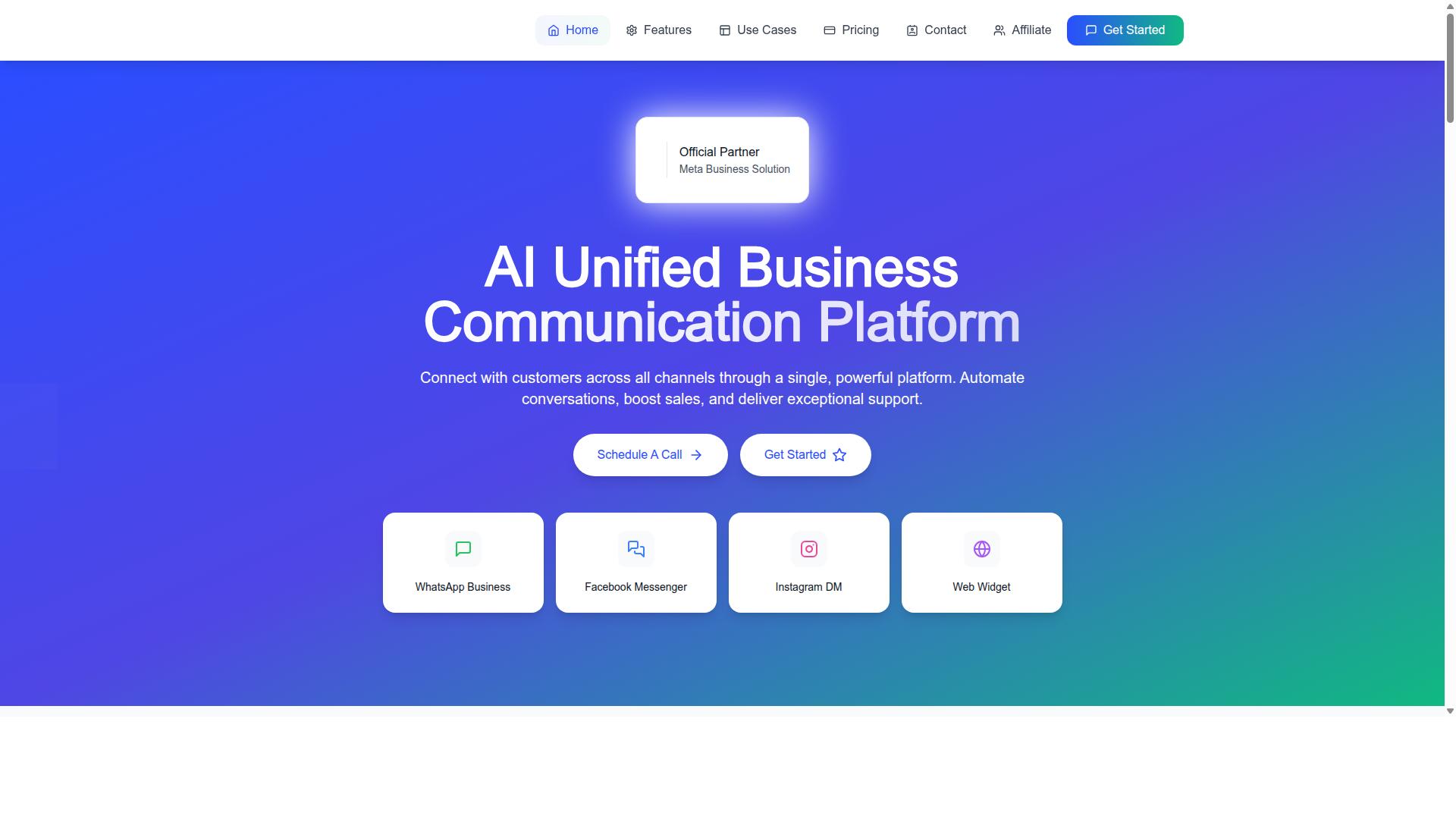
Com.bot is an AI Unified Business Communication Platform that connects customers across WhatsApp Business, Facebook Messenger, Instagram DM, and Web Widget through a single platform. That single view matters because agents no longer switch between tabs to find a conversation.
As an Official Meta Business Partner, Com.bot provides reliable API access and compliance, which reduces the risk of disruptions that come with unofficial workarounds. The platform handles WhatsApp Business API integration so teams can focus on conversations rather than connection maintenance.
The Visual Bot Builder lets teams automate common queries without writing code, while the Unified Team Inbox ensures no message is missed. Native Payments for WhatsApp transactions and Multi-Channel Support round out the platform.
Scale is another signal of reliability. Com.bot serves 23,000+ active customers and processes 25M+ messages per day, a volume that speaks to stability under real support workloads.
Pricing and Plan Considerations for Support Teams
Com.bot's pricing is tiered to match team size and feature needs: the Silver Plan at $149 per quarter, Gold Plan at $349 per quarter (recommended), and Platinum V1 at $2500 per quarter, with add-ons like additional team members for $10 per month.
| Plan | Price | Best For |
|---|---|---|
| Silver | $149 per quarter | Small teams testing the platform |
| Gold | $349 per quarter (Recommended) | Growing support teams needing balance |
| Platinum V1 | $2500 per quarter | Enterprise-scale operations |
Add-ons run $10 per month for an additional team member, social channel, or external actions (per 5000). Bot triggers (per 25000) and an ecom store are also available as add-ons.
All plans include core features like the unified inbox and bot builder, and higher tiers may offer more bots, channels, or message volume. Support teams should start with Gold for a balance of features and cost, then scale to Platinum for enterprise needs.
Because pricing is per quarter, budgeting can be more predictable than monthly subscriptions. WhatsApp messaging is billed at actual Meta rates with no markup, so costs stay transparent.
Common Integration Pitfalls and How to Avoid Them
The most common integration pitfalls are not technical failures but configuration oversights: an expired access token, a misconfigured webhook, or a misunderstanding of rate limits. These issues often surface weeks after launch, when a staff member changes roles or a campaign triggers unexpected traffic.
For customer support teams, the consequences are immediate. Messages stop arriving in the unified inbox, tickets duplicate, and agents lose visibility into conversations on WhatsApp Business API, Messenger Platform, or Instagram Direct. The good news is that each pitfall has a known fix.
Pitfall 1: Using a user access token instead of a system user token. A user token is tied to an individual's account. When that person changes roles, leaves the company, or has their permissions adjusted in Business Manager, the token stops working and the integration goes down without warning.
The fix is straightforward. Create a system user in Business Manager and generate a token for it. System user tokens are not tied to a person, so role changes do not break the connection. Build a token refresh process and alert on authentication failures so the team learns about problems before customers do.
Pitfall 2: Forgetting to subscribe to the correct webhook fields. A callback URL can be verified and still receive nothing useful if the app is not subscribed to the right events. Common misses include messages, message_template_status_update, and messaging events tied to specific channels.
Review subscriptions in the Meta App Dashboard whenever a new channel goes live. Confirm that the Facebook Page, Instagram account, and WhatsApp Business account are each linked to the app and that the expected event types are checked. Test by sending a real message and watching the webhook log.
Pitfall 3: Not handling webhook retries or duplicates. Meta retries webhook deliveries when your endpoint does not respond quickly or returns an error. Without safeguards, the same message can create two or three tickets, confusing agents and skewing reporting.
Use idempotency keys, typically the message ID from the payload, to detect repeats before writing to the CRM or helpdesk. Respond with a success status as soon as the payload is stored, then process it asynchronously. This keeps delivery fast and prevents retry storms.
Pitfall 4: Exceeding rate limits during bulk sends. Sending a large template broadcast in one burst can trigger throttling, delaying or dropping messages. Support teams often notice only when customers complain about missing notifications.
Monitor rate limit headers returned by the Graph API and pace outbound sends accordingly. Queue messages and release them at a controlled rate rather than firing them all at once. If throttling occurs, back off and retry with increasing delays.
Pitfall 5: Ignoring payload size limits. Media attachments have caps, and WhatsApp media is limited to 16 MB. Oversized files cause delivery failures that can be hard to trace because the error appears on the sending side, not in the agent's inbox.
Validate file sizes before upload and compress images or documents where possible. For larger assets, host the file and send a link instead of the attachment. Log payload rejections with enough detail to identify the offending message.
| Pitfall | Typical Symptom | Practical Fix |
|---|---|---|
| User access token | Sudden integration outage after a role change | Switch to a system user token with refresh monitoring |
| Missing webhook subscriptions | No events arriving despite a verified callback URL | Subscribe to messages and status update fields per channel |
| Unhandled retries | Duplicate tickets for one conversation | Apply idempotency keys and process asynchronously |
| Rate limit overruns | Throttled or delayed bulk sends | Queue outbound messages and read rate limit headers |
| Payload size overruns | Failed media delivery with unclear errors | Validate sizes and send links for large files |
Before going live, test every flow in a staging environment with a separate app and test business assets. Run through token expiry, webhook retries, bulk sends, and oversized media so the team sees how failures behave. A partner platform can abstract much of this work, handling token management, webhook processing, and rate limit pacing so support teams focus on conversations rather than plumbing.
Measuring Success: Metrics That Matter for Multi-Channel Support
To prove ROI from your Meta Business Partner integration, track metrics that go beyond volume: first response time, resolution rate, and customer satisfaction (CSAT) across channels. A unified inbox connected through the WhatsApp Business API, Messenger Platform, and Instagram Direct gives support leaders one place to watch these numbers move in real time.
Without channel-level visibility, averages hide the truth. A strong overall score can mask a struggling Facebook Page queue or slow WhatsApp replies. The fix is to segment every metric by channel so you can see exactly where customers need more help.
The five metrics below form a practical scorecard for any customer support team running multi-channel conversations.
- First Response Time (FRT): how long a customer waits for the first human reply.
- Average Handle Time (AHT): total time an agent spends on a conversation, tracked separately per channel because chat, email, and social move at different speeds.
- Resolution Rate: the percentage of conversations closed without escalation to a specialist or another team.
- CSAT: a short satisfaction survey sent after resolution, scored per channel to catch experience gaps.
- Bot Containment Rate: the percentage of queries the bot resolves on its own, with no agent involvement.
Read these metrics together, not in isolation. A high containment rate paired with low CSAT often means the bot is closing tickets customers did not consider solved. Fast first responses with slow resolutions can point to routing or knowledge gaps rather than staffing shortages.
Segmenting by channel turns raw numbers into decisions. If Instagram Direct shows a long FRT while Messenger stays healthy, the issue may be agent assignment rules rather than headcount. If WhatsApp resolution rates dip, review your quick replies, saved responses, and bot flows for that channel first.
A real-time analytics dashboard inside the unified inbox keeps these KPIs visible during the workday, not just in monthly reviews. Agents and team leads can spot a queue building up and adjust before customers feel the delay. Webhook events from the Graph API feed conversations into the inbox, so the data reflects live message activity rather than delayed exports.
Com.bot provides reporting features to monitor these KPIs, giving support teams a way to review FRT, AHT, resolution rate, CSAT, and containment without stitching together spreadsheets. For teams evaluating the platform, you can reach the team at [email protected] or +91 080 6987 1810 during business hours, Monday through Friday, 9:00 AM to 6:00 PM IST. WhatsApp support is also available for quick questions.
To see how these metrics look for your own channels, contact sales to arrange a demo.
Recommended Resources: